Free on AppExchange · 100% Salesforce-native

Reassign everything a departing user owns.
In one pass.

User Offboarding scans every object in your org, shows you exactly what would move, and then transfers ownership – leaving a per-record audit log behind. No object checklist to maintain. No data leaves Salesforce.

Dry Run preview before anything changes Runs entirely inside your org

Illustration of a Dry Run in progress: the app scans all 97 transferable objects in the org and finds 10 objects holding 113 records owned by the departing user.

The problem

Salesforce moves ownership one object at a time.

When someone leaves, they leave behind Accounts, Opportunities, Cases, open Tasks, files, and records in a dozen custom objects. The native mass transfer tool handles one of those per run – and it is on you to remember every object worth checking.

Native mass transfer
One object. One run. Repeat.

Pick an object, transfer, go back, pick the next. Anything you forget stays with the departing user – and you find out months later.

AccountOpportunityCaseLead… and whatever you forget
User Offboarding
Every object. One job.

The app discovers every queryable object with an updateable owner, scans them all, and reports what it found – per object, per record. There is no list to maintain.

AccountOpportunityCaseTaskContentVersionProject__c+91 more
How a job runs

Five things happen, in this order, every time.

A Job is one transfer request from a source user to a target user. It is made up of Batches – one per object that actually held records. That structure is what you see throughout the app.

STEP 1

It discovers every object automatically

The app scans your org for every object that is queryable, accessible to you, and has an OwnerId field that can be read and updated. Everything else is skipped before the job begins.

STEP 2

It lets you preview first

A Dry Run scans and counts exactly what would change, without writing to a single record. Review it, adjust your exclusions, then commit.

STEP 3

It processes each object in its own batch

Objects are handled one at a time in chained Apex batches, and large objects are chunked further – so the job completes reliably whatever the record volume.

STEP 4

It records everything

Each object produces a batch record with counts and per-record detail. The job produces a downloadable CSV log of every record ID that changed hands, and every one that failed, with the platform's own error message.

STEP 5

It tells you when it is done

A bell notification on desktop and mobile, plus an email summary with the per-object breakdown and a link straight back to the job. You do not have to watch it.

Two run modes

Preview it. Then mean it.

Ownership transfer cannot be undone from the app. So every job runs in one of two modes, and you choose which when you start it.

Job Batches · OTJ-0042 Scan only — nothing is written Records reassigned to the selected user
Batch Object Object API name Status Found Updated Failed
OTB-000032AccountAccountScannedUpdated11110
OTB-000033ContactContactScannedUpdated10100
OTB-000034LeadLeadScannedUpdated10100
OTB-000035OpportunityOpportunityScannedFailed1055
OTB-000036CaseCaseScannedUpdated10100
OTB-000037Content VersionContentVersionScannedUpdated220
OTB-000038TaskTaskScannedUpdated10100
OTB-000039User App Menu CustomizationUserAppMenuCustomizationScannedUpdated38380
OTB-000041FlowFlowRecordScannedUpdated11110
OTB-000042BookBook__cScannedType Error100
10 objects · 113 records found · 0 records changed · Execute button now available on the job 10 objects · 113 records found · 107 updated · 5 failed · 1 object added to Restricted Objects
Dry Run
Full Run
What it does
Scans and counts only
Scans and reassigns ownership
Changes your data
No — nothing is written
Yes — records are updated
Batch status shown
Scanned
Updated / Failed / Type Error
CSV log produced
Yes, rows marked Scanned
Yes, rows marked Updated or Failed
Typical use
Preview and impact assessment
The actual transfer

When a Dry Run completes, an Execute button appears on the job record. It opens a confirmation showing the source user, the target user, and the scan result – then creates a Full Run job and leaves the Dry Run intact as your record of the preview. The Full Run re-queries your data from scratch, so treat the preview as an accurate estimate rather than a guarantee.

Scope

What moves, what stays, and why.

Some standard objects would fail or cause unwanted side effects if transferred wholesale, so the app narrows what it selects for them.

FilesContentVersion

The latest version of each file. The parent document is reassigned at the same time, so files move intact rather than being orphaned.

TasksTask

Open tasks only. Closed tasks are historical – reassigning them would misrepresent who did the work.

EventsEvent

Non-child events that are either in the future or part of a still-active recurring series. Past events are left alone.

QuotesQuote

Quotes that are not currently syncing with an opportunity.

Orders and ContractsOrder · Contract

Records that are not Activated.

Knowledge articlesKnowledge__kav

Draft articles only. Published and archived versions are not reassigned.

Restricted Objects

Your exclusion list. Anything on it is never scanned and never updated. Add sensitive or system objects by API name before you run – and when the app hits an object whose owner is inherited from a parent, it adds that object itself, with the platform error stored in Notes. The list gets smarter with use.

Why single records fail

  • Locked records inside an approval process
  • Validation rules that reject the new owner
  • Assignment or territory rules re-routing the record
  • Sharing limits – the target user cannot own it
  • Inherited ownership in a master-detail relationship

Every one of them appears in the batch Failures tab with the platform's own message, and in the CSV log. Nothing fails silently.

Stopping mid-job

A running job has a Stop button. The confirmation tells you how far it got and how many records have already moved. It stops at the next safe point – and because the source user now owns only what was not reached, starting a new job picks up exactly where the stopped one left off.

The paper trail

Every record that changed hands, in one file.

When a job finishes, the app generates a record-level CSV and attaches it to the job. It documents exactly which records moved, when, and at whose instruction – the artefact to keep for compliance.

Transfer_Log_a0lWI000004Tl9JYAS_0.csv
Log IDSource userTarget userObject API nameRecord IDStatusError
OTB-000032Inspector LestradeJames MoriartyAccount001WI00000A7bQxYAJUpdated
OTB-000035Inspector LestradeJames MoriartyOpportunity006WI00000B2kLmYANUpdated
OTB-000035Inspector LestradeJames MoriartyOpportunity006WI00000B2kLnYANFailedFIELD_CUSTOM_VALIDATION_EXCEPTION: Owner must hold the Sales Manager role
OTB-000037Inspector LestradeJames MoriartyContentVersion068WI00000C4pRtYAPUpdated
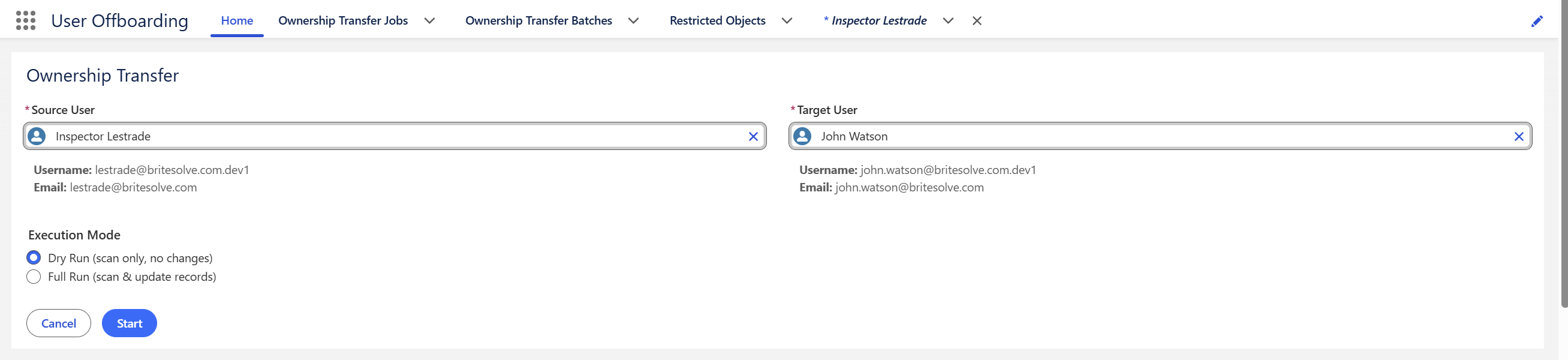
The Ownership Transfer form, with Source User and Target User pickers showing each user's username and email, and Execution Mode set to Dry Run.
Pick two users, pick a mode. The form shows each user's username and email so you can confirm you have the right person. Start stays disabled until both are selected.
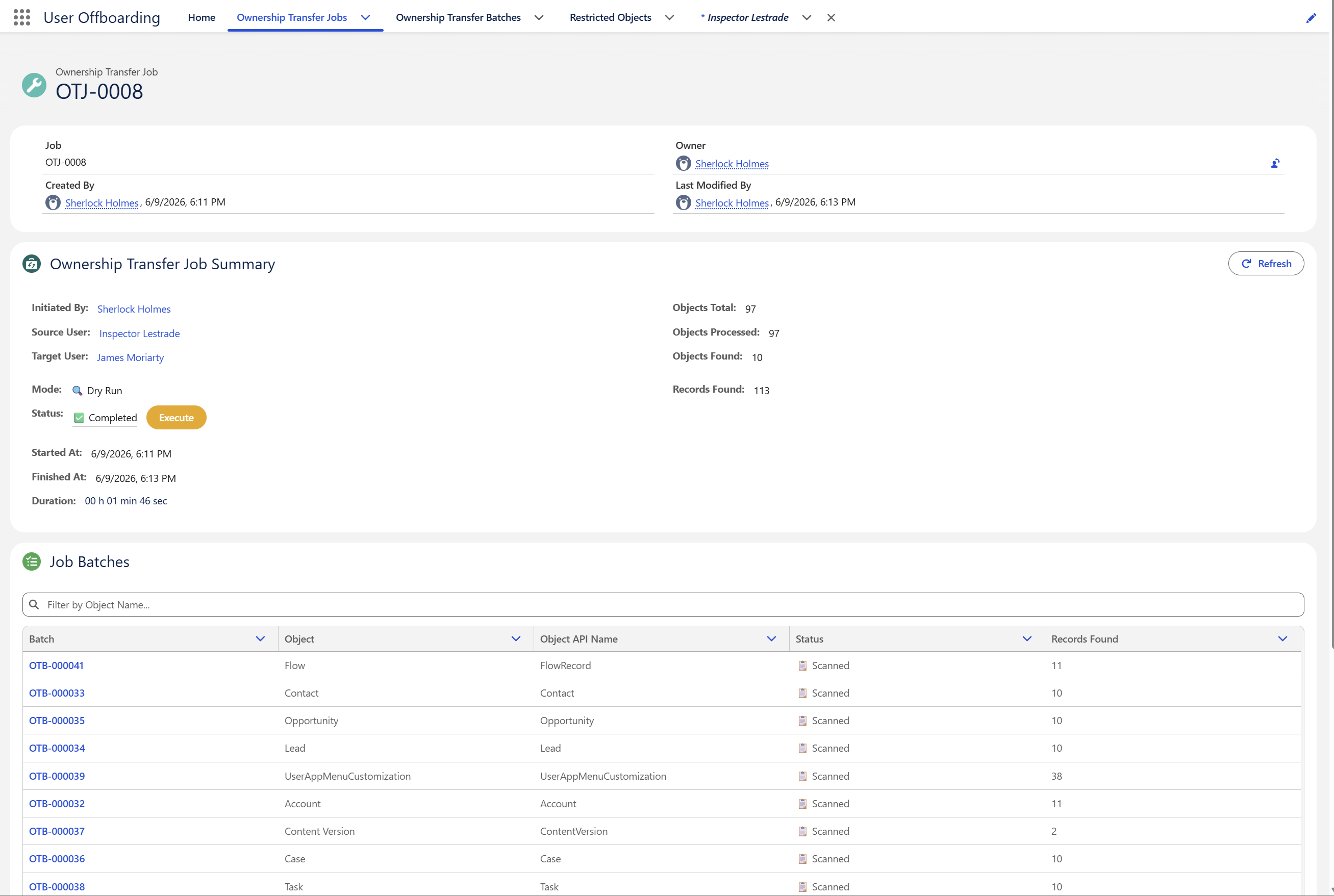
A completed Dry Run job summary showing 97 objects total, 10 objects found, 113 records found, and an Execute button beside the Completed status.
Review the preview. 97 objects scanned, 10 held records, 113 records identified. The Execute button beside the status turns the preview into the real thing.
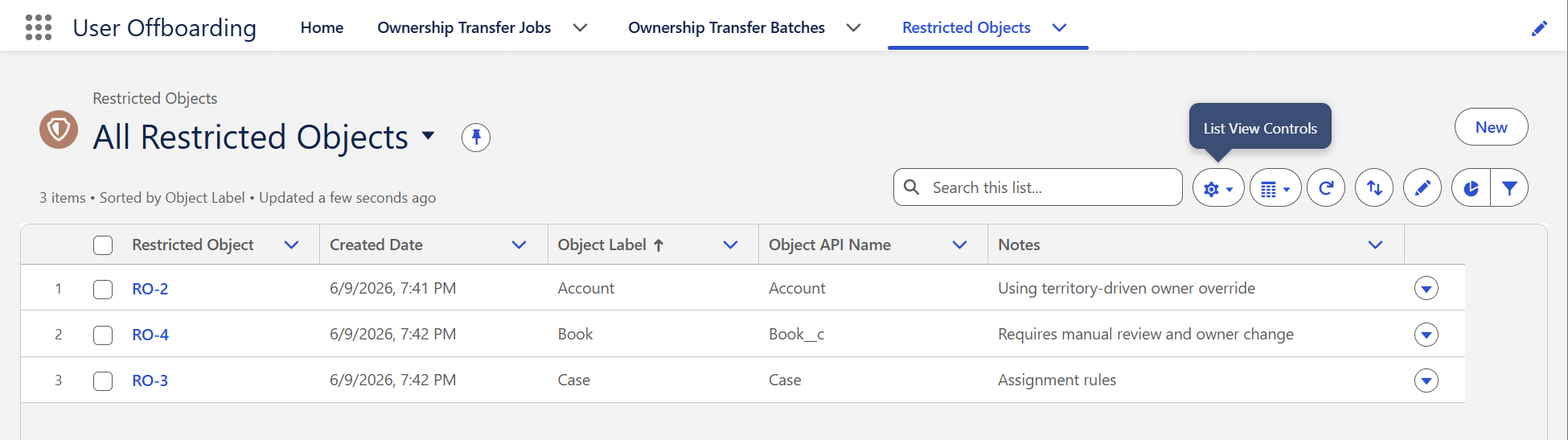
The Restricted Objects list view with three excluded objects: Account, Book, and Case, each with a note explaining the exclusion.
Keep what must not move out of scope. Restricted Objects are skipped entirely – never scanned, never updated – with a note recording why each one is excluded.
Before you install

What it needs, and what it never asks for.

A managed package, installed from AppExchange at no cost. It adds an app with four tabs, two custom objects, and one permission set.

Edition
Enterprise, Unlimited, Performance, Developer, or Professional. Professional Edition requires the package's Apex to be enabled – validate in a PE org before rolling out.
Interface
Lightning Experience, desktop or large form factor.
Permission
The Ownership Transfer Manager permission set, which grants the app, its tabs and objects, and the Can Transfer Ownership custom permission the app checks before starting any job.
External services
None. The app is 100% native – all processing happens inside Salesforce and your data never leaves your org.
Cost
Free, for any number of users.

Before your first real run

  • Confirm the target user is active and has the licences, profile access, and record access to own what is coming.
  • Add anything that must not move to Restricted Objects.
  • Run it outside periods when other heavy Apex batch jobs are queued.
  • Do not deactivate the departing user yet – records can only be queried against an existing user. Deactivate after the transfer succeeds.
  • Always run a Dry Run first, and review it before committing.
Questions

The ones admins ask first.

Can I undo a transfer?

Not from within the app – there is no rollback. That is precisely why Dry Run exists. If you must reverse one, you can run a job in the opposite direction, but it will move every record the second user now owns, not only the ones you just transferred. The CSV log gives you exact record IDs for a targeted correction.

Do I have to deactivate the departing user first?

No – and you should not. Records can only be queried against an existing user. Run the transfer while they are still active, confirm the results, then deactivate.

Can I transfer only certain objects?

Indirectly. Add every object you do not want moved to Restricted Objects. The app always processes all remaining transferable objects – there is no per-job object picker.

Does it move files and attachments?

Yes. Files are transferred via ContentVersion, and the parent document is reassigned at the same time, so files move intact rather than being orphaned.

Is any data sent outside my org?

No. The app is 100% native. All processing happens inside Salesforce and no external service is called.

Can I start a transfer from a Flow?

Yes. The app exposes a Transfer Record Ownership invocable action taking a source user ID, a target user ID, and a dry-run flag. It processes one request at a time – bulk invocation is not supported.

Why is Objects Total in the hundreds?

Objects Total counts every object in your org that could hold owned records. Objects Found counts only the ones where the departing user actually owned something. A job reporting 10 objects found out of 97 is working exactly as intended.

How long does a job take?

It depends on your object count and record volume – objects are processed one at a time in chained Apex batches, so a large org takes a while. You do not need to watch it; the bell notification and email summary arrive when it finishes.

Who built it

BriteSolve builds on Salesforce, and only on Salesforce.

User Offboarding is free because it solves a problem we kept solving by hand for clients. The paid work looks like this – led by certified architects with enterprise domain expertise, in two-week sprints with no surprises at go-live.

Process automation

Flows, triggers, and orchestrations that remove repetitive work and human bottlenecks.

Custom app development

Lightning Web Components, Apex back-ends, and Experience Cloud portals that feel native.

System integrations

Salesforce connected to ERP, HRIS, and proprietary systems through robust APIs and middleware.

Analytics and reporting

Dashboards, custom report types, and real-time KPI tracking leadership can act on.

Security and compliance

Shield encryption, field-level security, and audit trails for regulated industries.

Managed support

Administration, release management, and optimisation retainers as your org evolves.

Get started

Install it, run a Dry Run, see what turns up.

It costs nothing, it changes nothing until you tell it to, and it will find records you had forgotten about.

Get it free on AppExchange Talk to BriteSolve